
The officially supported route for playing Clash of Clans on a Windows PC is Google Play Games on PC. To continue an existing village, connect the correct Supercell ID inside the game. Installing the PC application and signing into Google are not substitutes for identifying the Supercell account that holds your progress.
This is a source-based setup guide, checked against Google and Supercell documentation on November 1, 2026. It does not claim an in-house performance test or promise that every PC configuration will run the game well.
What version are you installing?
Supercell Support explains that the Windows Google Play Games application uses the Android versions of Clash of Clans and Clash Royale. This is not a separate village-management game with an independent campaign.
Supercell’s official PC announcement confirms mouse controls, cross-platform play and the ability to continue progress through Supercell ID. It also states that opening the same account on another device logs out the previous session. Switching devices is supported; simultaneous play on one account is not.
1. Check the village on your original device first
Open the village you want to keep and check its Supercell ID connection in the game’s settings. Supercell’s account guide explains where to start linking an account and how one ID can connect supported games.
Before doing anything on the new computer, note the village name and player tag. This is our suggested safety check: it gives you a simple way to distinguish the expected village from a fresh account later. Do not uninstall the mobile game as part of this setup process.
2. Check the Windows PC requirements
Google’s published minimum requirements include Windows 10 version 2004, an SSD with 10 GB free, 8 GB RAM, four physical CPU cores and graphics comparable to Intel UHD Graphics 630. Hardware virtualization and a Windows administrator account are also required. Meeting that baseline is not a guarantee of a particular frame rate.
For the platform-wide checks, read our Google Play Games on PC requirements guide. Recheck Google’s requirements before installation rather than relying on the age or branding of your computer.
3. Install through the official Google application
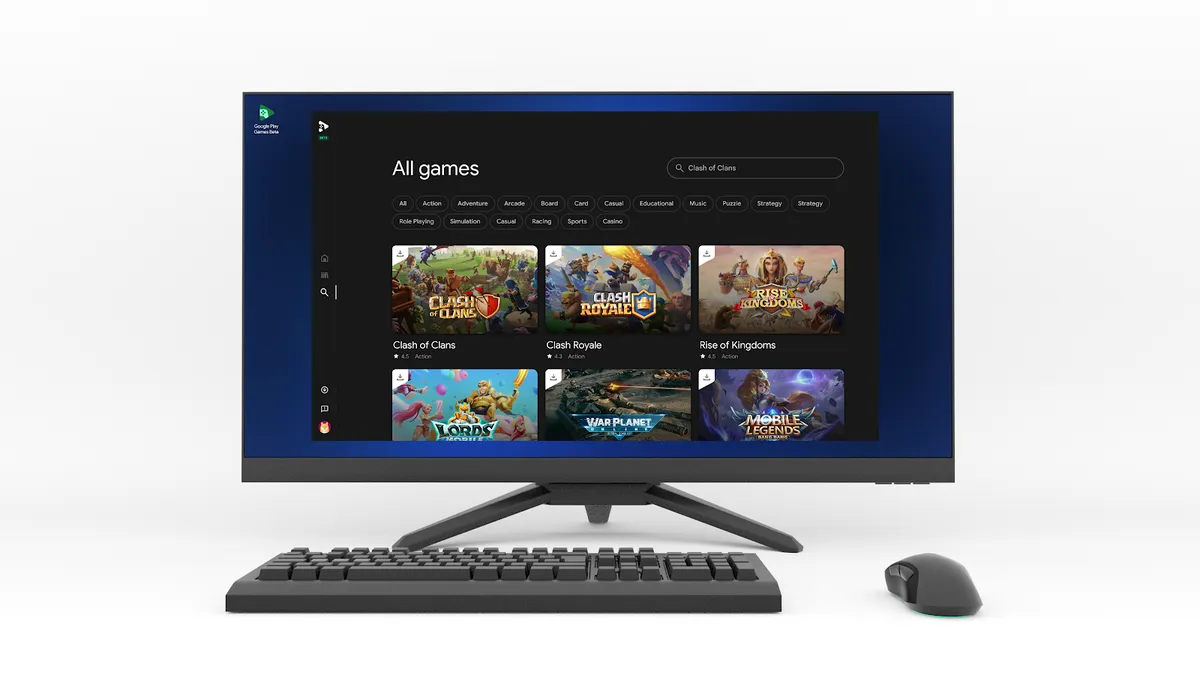
Visit Google Play Games on PC, install the application and follow its sign-in prompts. Search the PC catalog for Clash of Clans and verify that the listing is the Supercell game before installing. Google’s official PC catalog includes the title; availability still depends on your region and compatible device.
A website offering a separate unofficial executable is not the installation route described in this guide. Keep the download and account-verification steps within Google’s and Supercell’s own services.
4. Load the correct Supercell ID
Launch the game, open its settings and follow the Supercell ID sign-in flow for the account connected to your mobile village. Supercell describes its ID system as the way to recover progress on a new device and to switch between multiple game accounts.
Before continuing play, compare the village name and player tag with your original device. If the PC shows an unfamiliar new village, pause rather than assuming that the original village has disappeared. Recheck which Supercell ID you used. Never send a verification code to someone offering to “transfer” the account for you.
When something does not match
The game is absent from search: check the local catalog and computer eligibility. The application will not install: return to Google’s system requirements and installation help. The wrong village appears: review the account connection on the original device. These are different problems; reinstalling everything at once makes them harder to isolate.
If account recovery is needed, use Supercell’s official support process. We do not recommend deleting progress, purchasing another person’s account or using a third party to bypass verification.
Does PC play cost extra?
Supercell describes Clash of Clans on PC as free to play with optional in-game purchases, like the mobile version. That is not a promise that every item is free. Confirm the item, account and displayed price before making a purchase.
For the distinction between playing together and moving progress, read our cross-play versus cross-progression guide. Here, the important practical point is to verify the existing Supercell ID before changing devices.
Sources and image credit
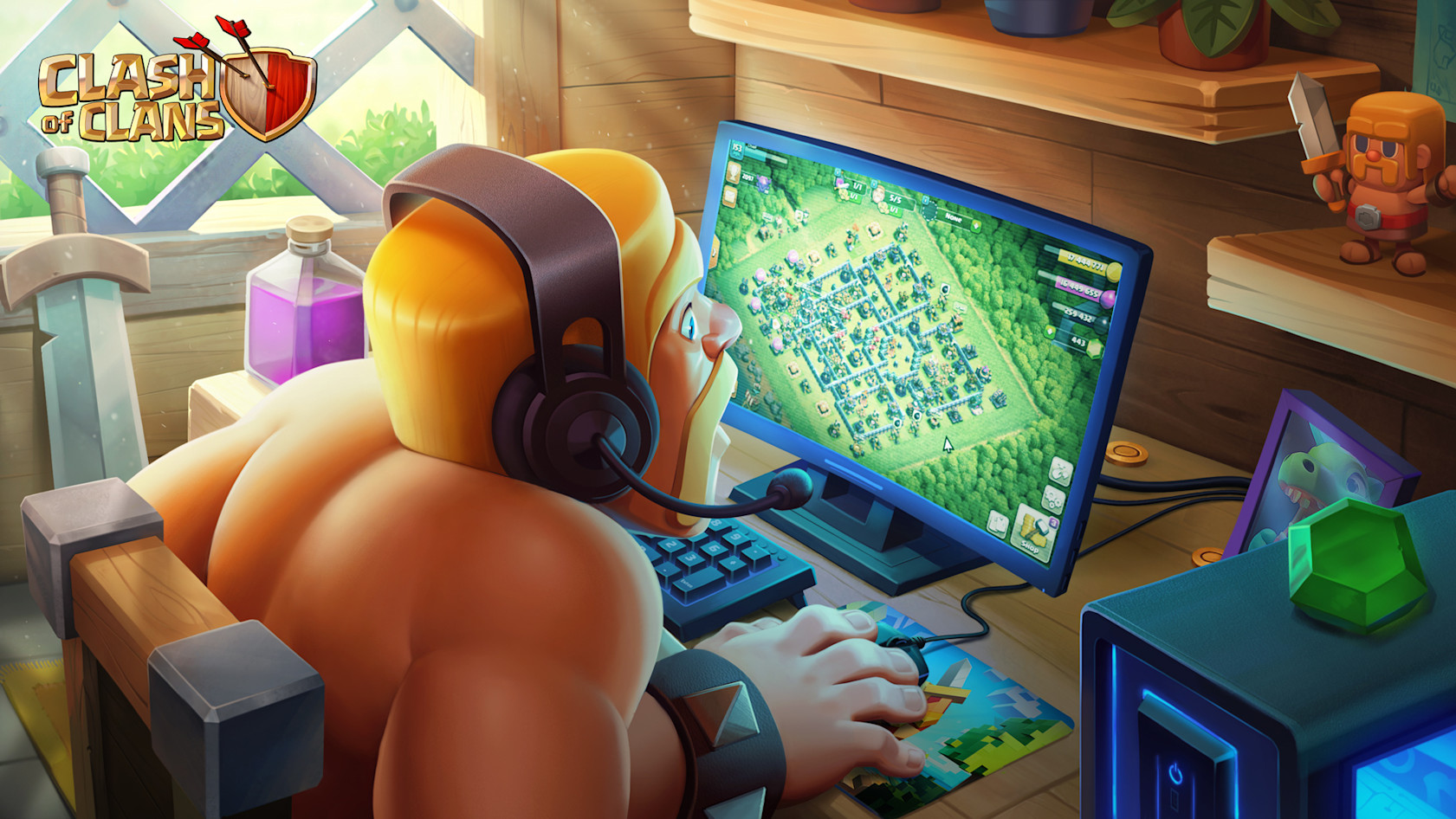
Sources: Supercell’s PC launch FAQ, Supercell ID, Supercell Support and Google’s PC requirements. Featured image: official Supercell PC launch artwork from 2023; body image: Google. Neither image represents our own gameplay capture.