
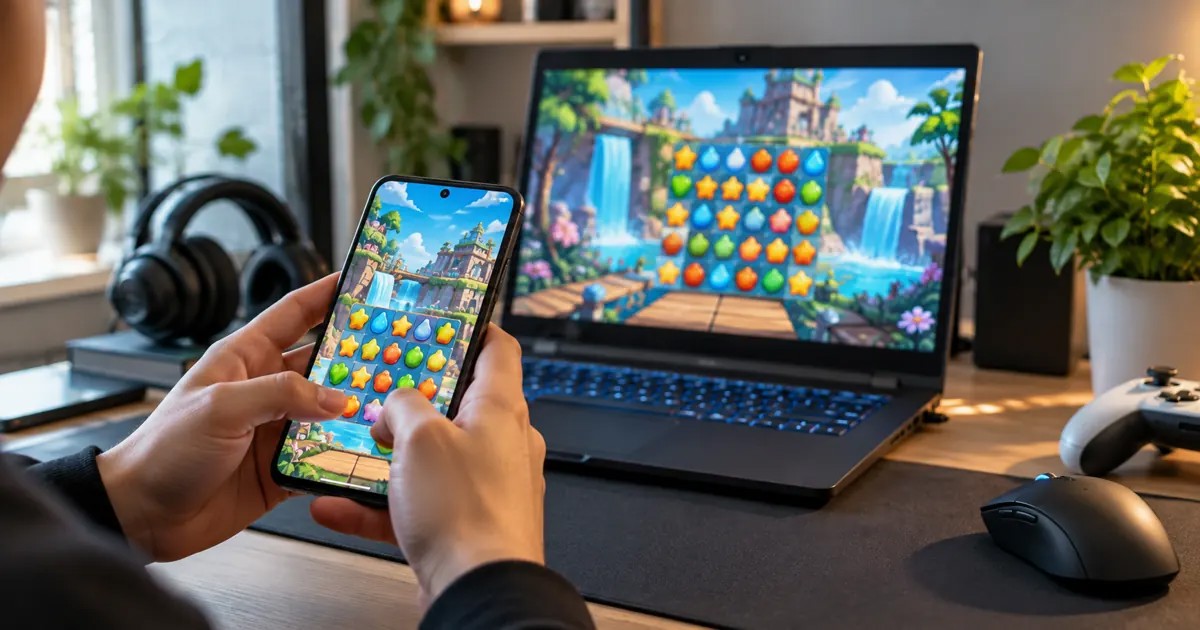
Mobile gaming is no longer limited to a phone screen. Google Play Games on PC lets eligible players access participating Android games on Windows, with keyboard and mouse input and progress syncing in supported titles. But the experience is not the same as installing every Android app on a computer.
Before downloading, players should check the game’s availability, their PC specifications, and how its account and save system works.
What Is Google Play Games on PC?
Google Play Games on PC is Google’s Windows gaming platform for supported mobile titles. Its official help documentation explains that players can use a keyboard and mouse, access eligible games and synchronize progress between devices. Availability depends on the title and region; a game you play on Android is not automatically available in the PC catalog.
Minimum Windows PC Requirements
According to Google’s published requirements, the baseline includes Windows 10 version 2004 or newer, an SSD with at least 10 GB of free space, 8 GB of RAM, a processor with four physical CPU cores and graphics comparable to Intel UHD Graphics 630. An administrator account and enabled hardware virtualization are also required.
Google recommends stronger hardware for a smoother experience, including eight logical CPU cores and gaming-class graphics. Meeting the minimum specifications does not guarantee identical performance across every title.
Will Your Mobile Game Progress Carry Over?
Google describes progress syncing between mobile and PC as a supported feature of Google Play Games on PC. In practice, players should confirm that a particular game is available on both devices and that the same account is connected. Games with separate publisher accounts or their own account-linking rules may require additional steps.
Before moving between devices, make sure the game has finished saving and syncing. If the game displays a cloud-save or account-linking status, check it rather than assuming the latest progress has already transferred.
How to Prepare Your PC
- Confirm that your Windows version, RAM, processor and storage meet Google’s minimum requirements.
- Check whether hardware virtualization is enabled in your PC’s firmware settings.
- Visit Google’s official Google Play Games on PC download page.
- Browse the available game catalog and look for compatibility notices.
- Sign in with the appropriate Google account, and verify account linking inside each game if needed.
What About Controls and Performance?
Keyboard and mouse support may make some mobile games more comfortable on a desktop, especially if you prefer a larger screen. However, controls vary by game, and performance depends on the hardware and the title. Google’s catalog can warn players when a game may not perform well on their computer.
Think of Google Play Games on PC as another supported place to play participating mobile games, rather than a universal way to run any mobile game.
The Bottom Line
For players who already use Android, Google Play Games on PC can be a convenient alternative for compatible games. Check the catalog, system requirements and account-sync behavior first, particularly before investing more time in a game across two devices.
Official source: Google Play Help — Check if your PC can run Google Play Games on PC.