

If Hades II stops recognizing your controller, start by separating a connection problem from a game-specific input problem. Restarting with one controller connected and checking the game’s Steam Input override are useful first steps. Avoid deleting saves or changing several system settings at once.
This guide organizes official support advice into a reversible troubleshooting sequence. It is not a report of our own hardware tests, and none of the steps guarantees a fix for every controller. Sources checked November 1, 2026.
First, identify what actually fails
Before changing settings, write down whether the controller is completely absent, disconnects during play, or responds with noticeable delay. Those symptoms call for different investigations. A controller that works in Windows but not in one game is a different case from a device Windows cannot connect to.
Our suggested diagnostic order is connection first, game configuration second, then performance. Test the same simple action after each change and keep a note of the original setting. This makes a successful change easier to identify and an unsuccessful one easier to reverse.
1. Check the Windows Bluetooth connection
For a wireless controller, confirm that Bluetooth is enabled, the controller is powered and charged, and the device is within range. Microsoft’s Bluetooth troubleshooting guide recommends these checks before more involved repairs. Its Windows 11 Get Help troubleshooter can investigate connection failures.
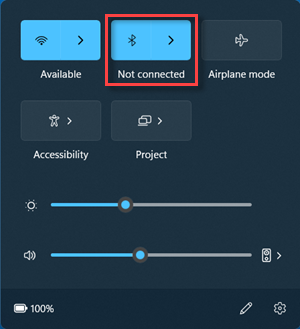
If Windows cannot detect the controller at all, concentrate on that connection before adjusting Hades II. Microsoft’s guide also describes removing and pairing the affected Bluetooth device again. Do not remove unrelated devices or install drivers from an unverified download site.
2. Restart Hades II with one controller connected
Supergiant’s technical support guide recommends restarting with the controller already connected and testing with only one controller attached. Try that clean setup before adding other input devices back.
Use a low-pressure location or menu for the test. The aim is to establish whether input returns, not to complete a difficult encounter while troubleshooting.
3. Test the per-game Steam Input override
In the Steam Library, right-click Hades II, open Properties → Controller, and find the override for the game. Supergiant advises testing the opposite Steam Input state: enabled when it was disabled, or disabled when it was enabled. Relaunch and check the result.
This is a comparison test, not a rule that one state is always better. Record what you changed. If the problem remains, restore the previous state before investigating another possibility. The Steam-specific setting is not an instruction for the Epic Games Store version.
4. Distinguish Bluetooth trouble from input delay
Supergiant lists two further checks: disabling in-game vibration for Bluetooth-specific problems, and testing the VSync setting when input feels delayed. Change only the option relevant to your symptom, then compare.
A delayed response does not by itself prove that the controller is defective. Conversely, changing graphics settings is not a substitute for establishing a reliable connection. Keep those two lines of investigation separate.
5. Check the installation when symptoms extend beyond input
If the game also behaves unexpectedly after an update, Steam’s file-verification guidance is a useful next reference. Use the game’s Properties and Installed Files controls rather than replacing files with unofficial downloads. File verification is a diagnostic step, not proof that corrupted files caused the controller issue.
What to send support if the problem remains
Prepare a brief record of the controller model, wired or Bluetooth connection, storefront, operating system, when the failure occurs, and which single-setting tests you tried. Distinguish observations from guesses: “the controller works in the menu but disconnects during combat” is more useful than “the game is broken.” Contact Supergiant through its official support page for the next step.
For surrounding platform issues, see our Steam Cloud saves guide. For the broader game assessment, read our Hades II review, which identifies its research-based methodology.
Sources and scope
This troubleshooting sequence draws on Supergiant Games support, Microsoft Bluetooth support and Steam file-verification guidance. Menu labels can change. We do not recommend deleting save data, disabling security protection or using registry edits for this checklist.